How to Separate Dialogue, Music, and Sound Effects from a Video
Learn how to separate dialogue, music, and sound effects from a video, review each stem, repair residue, and prepare a clean new mix.

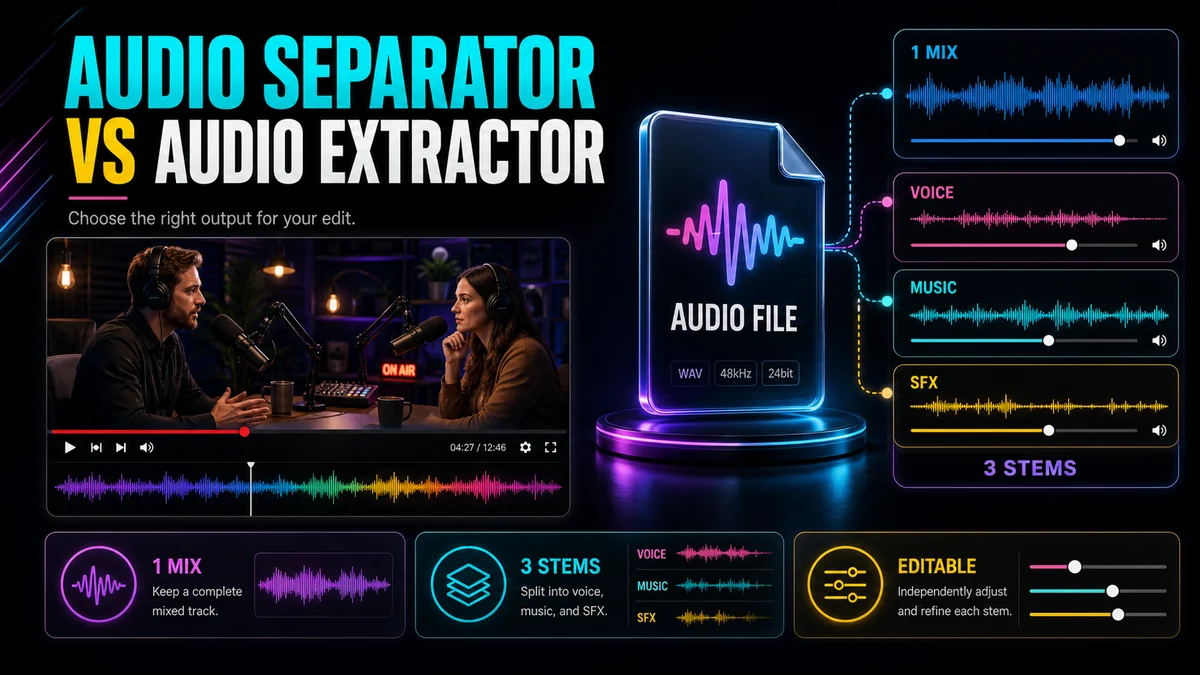
The search phrase separate dialogue music sound effects describes a three-stem source-separation task. To do it from a video, use a workflow that returns independent dialogue, music, and effects stems, then preview each stem where sounds overlap. Do not begin with a basic audio extractor: extraction only saves the complete soundtrack as one file. A separator estimates the three sources so you can mute, replace, clean, or rebalance them independently. Expect useful stems rather than a perfect reconstruction, and keep the original mix for comparison.
Key Takeaways
- A three-stem split preserves more editing control than a simple voice-versus-background split.
- Dialogue, music, and effects are estimates derived from a finished mix, so faint bleed can remain.
- Review transitions, reverb tails, impacts, crowd scenes, and speech over music before exporting.
- Repair only the problem regions when possible; aggressive whole-track processing can make speech sound thin or artificial.
- Export a reversible working set: the untouched mix plus every separated stem.
Why Three Stems Matter for Video Editing
A two-stem “vocals and instrumental” result can work well for a song. Video sound is usually more complex. Its background may contain a score, room ambience, applause, traffic, footsteps, interface clicks, and designed effects. Combining all of that into one instrumental track creates a new limitation: removing the score may also remove the environmental sound that makes the scene believable.
Recapo’s Audio Separator provides a video-oriented dialogue/music/effects split. In practical terms:
- Dialogue is the spoken or vocal foreground you may want to clean, translate, replace, or emphasize.
- Music is the score or music bed you may want to mute, replace, or rebalance.
- Effects includes sound effects and ambience that help the edit retain place, motion, and continuity.
The categories can overlap. A crowd chanting in rhythm might resemble music; a reverberant voice may spill into the effects stem; a tonal effect may resemble part of the score. That is why quality control is part of the workflow, not an optional final glance.
Plan the Split Before You Process
Start by defining the intended edit. The same source can require different decisions.
| Editing goalStem to keepStem to changeMain review risk | |||
| Replace a music bed | Dialogue + effects | Music | Music residue under speech |
| Create a dub | Music + effects | Dialogue | Original voice bleed and missing vocal-linked effects |
| Improve speech clarity | Dialogue | Dialogue processing only | Overprocessing consonants or room tone |
| Build a trailer sound bed | Music + effects | Rebalance both | Impacts classified as music |
| Create a clean interview excerpt | Dialogue + selected ambience | Music and distracting effects | Unnatural silence between phrases |
If you only need one audio-only copy of the original mix, use an audio extraction workflow instead. Separation is justified when the stems need different treatment.
Step-by-Step Workflow
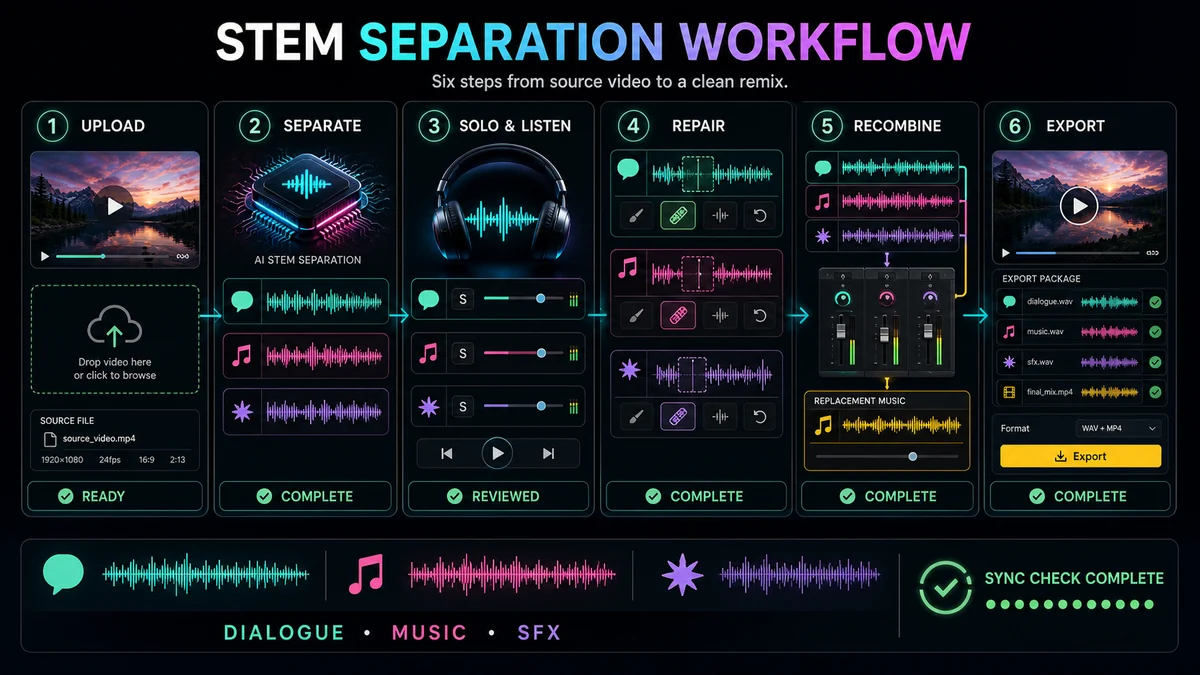
1. Prepare the best source you are allowed to edit
Use the earliest, cleanest file available. A copy that has been downloaded, recompressed, and exported several times may contain smeared high frequencies, pumping, or other artifacts that make source boundaries harder to estimate.
Listen to the source before uploading. Mark difficult sections: simultaneous talking and music, applause, loud impacts, singing, strong room echo, and rapid transitions. Those markers become your review checklist later.
2. Upload the video and choose the three-part split
Open Recapo’s Audio Separator and provide the authorized source. Choose dialogue, music, and effects rather than vocals/instrumental when your goal is video re-editing, dubbing, or sound design.
Avoid making unsupported assumptions from an old tutorial or screenshot. Confirm the controls and available output choices on the live product page at the time of use, because product interfaces can change.
3. Preview every stem in solo
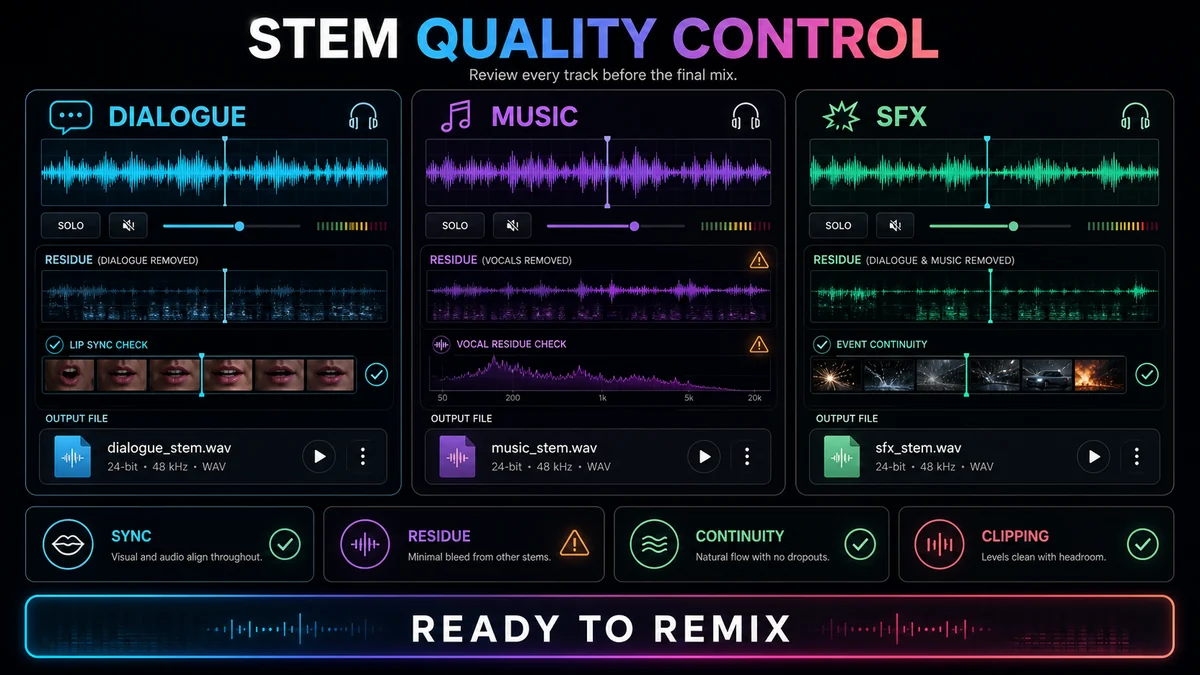
Begin with dialogue. Check whether words, breaths, and consonant edges remain intelligible. Then listen to music for speech bleed. Finally, listen to effects for missing impacts, ambience discontinuities, or fragments of voice and score.
Do not judge only a quiet, easy section. Jump to every marker you made before separation. A stem that sounds excellent during clean narration may struggle when the same speaker talks over a musical peak.
4. Recombine the stems you intend to keep
Solo playback exaggerates some artifacts. Recombine the retained stems and compare the result with the original mix at matched listening levels. A faint trace in one isolated stem may be masked naturally; a missing reverb tail may become obvious only in context.
For music replacement, mute the separated music stem, keep dialogue and effects, add the new track, and adjust its level around the speech. For dubbing, lower or mute the dialogue stem, preserve music and effects, and align the new performance to picture.
5. Repair local problems
Use the least destructive repair that works:
- Automate the level of a residue only where it appears.
- Add a short fade at a rough stem boundary.
- Patch a missing effect from the original mix when it can be isolated safely.
- Add subtle room tone under dialogue gaps if the split creates unnatural dead silence.
- Apply noise reduction to an isolated dialogue stem only when the remaining problem is genuinely noise.
General noise reduction is most effective on roughly steady textures. Official Recapo and Audacity documentation distinguish constant hiss, hum, or fan-like noise from sudden one-off sounds. A door slam or isolated click usually needs a targeted timeline or spectral repair, not stronger denoising across the whole stem.
6. Export a reversible package
Keep:
- the original video or original mixed soundtrack;
- the dialogue stem;
- the music stem;
- the effects stem;
- the new edit or combined mix;
- notes about any local repair.
Clear filenames and synchronized start times matter. If a stem is trimmed or shifted independently, it becomes easy to lose sync during the next edit.
How to Review Each Stem
Dialogue checklist
- Are the first and last consonants of each line intact?
- Does the voice retain a natural body, or has it become hollow or watery?
- Is music residue most obvious during pauses?
- Are breaths and room reflections acceptable for the intended edit?
- Does the stem stay synchronized with lip movement?
Music checklist
- Can you hear recognizable speech or vocal fragments?
- Are sustained notes interrupted where dialogue occurred?
- Do transitions and reverb tails remain smooth?
- If you will remove this stem, is any of the score still present in effects?
Effects and ambience checklist
- Are footsteps, impacts, interface clicks, and location ambience present?
- Did applause or crowd sound migrate into the dialogue or music stem?
- Does ambience disappear abruptly between spoken phrases?
- Are important sync effects aligned with the picture?
Common Problems and Practical Fixes
Speech remains in the music or effects stem
Lower that stem only during the affected phrase, or mask the residue with the replacement music when appropriate. For a dub, check whether the new voice naturally covers faint original speech. Do not claim it is gone until you audition on headphones and ordinary speakers.
Dialogue sounds thin
Compare it with the full mix. Some low-level room information may have moved to the effects stem. Recombining a controlled amount of ambience can sound more natural than pushing equalization or denoising harder.
Impacts disappear with the music
Some tonal or rhythmic effects can be classified as music. Restore the specific event from the original mix if it can be isolated without reintroducing the unwanted score, or recreate the effect from an authorized source.
Reverb creates cross-stem residue
Reverberation is made of reflections that overlap the direct sound in time and frequency. Source separation may place the dry voice in dialogue while some reflections remain elsewhere. Use level automation and contextual masking first. Broad de-reverb can help some recordings, but it cannot recreate detail that the original microphone did not capture distinctly.
When to Use a Two-Stem Vocal Split Instead
Use a vocals/instrumental split when the source is mainly musical and the task is karaoke, an acapella, or a remix bed. Recapo’s Vocal Remover is designed around that two-part result. For interviews, tutorials, films, product demos, and localization, dialogue/music/effects generally maps more closely to the editorial decisions you need to make.
Frequently Asked Questions
Can I perfectly separate dialogue, music, and effects from any video?
No. A finished soundtrack contains overlapping sources, and separation estimates their contributions. Strong overlap, reverb, and compression can leave residue or missing detail.
Is dialogue the same as vocals?
Not always. “Vocals” is often used in music workflows, while “dialogue” better describes spoken content in video. The best split depends on the source and the intended edit.
Should I extract the audio before using a separator?
Not if the separator accepts the video directly. Extraction is useful when you specifically need a standalone copy of the full mix; it does not improve separation by itself.
Should noise reduction happen before or after separation?
If noise mainly affects the voice, cleaning the separated dialogue can avoid changing music and effects. If heavy noise prevents useful separation, test a short section in both orders and choose the result with fewer artifacts.
What should I do with sudden unwanted sounds?
Treat them as local events. Cut, attenuate, or repair the affected region where possible. General denoising is better suited to roughly steady background noise than to isolated slams, clicks, or shouts.
Build the New Mix from Reviewed Stems
Separation is the start of an edit, not the end. Use Recapo’s Audio Separator to create dialogue, music, and effects stems, audition the hard sections, and recombine only after each layer passes the checklist. The original mix remains your safety copy and your most useful reference.
References and Official Sources
- Recapo Video Audio Separator
- Recapo AI Vocal Remover
- Recapo Audio Noise Reduction
- Audacity Manual: Noise Reduction
- Adobe Premiere: Repair Dialogue
Related Recapo Guides
- Audio Separator vs Audio Extractor: Which Tool Do You Need?
- How to Isolate Vocals from a Video Without Losing Quality
- How to Remove Echo from a Video Recording